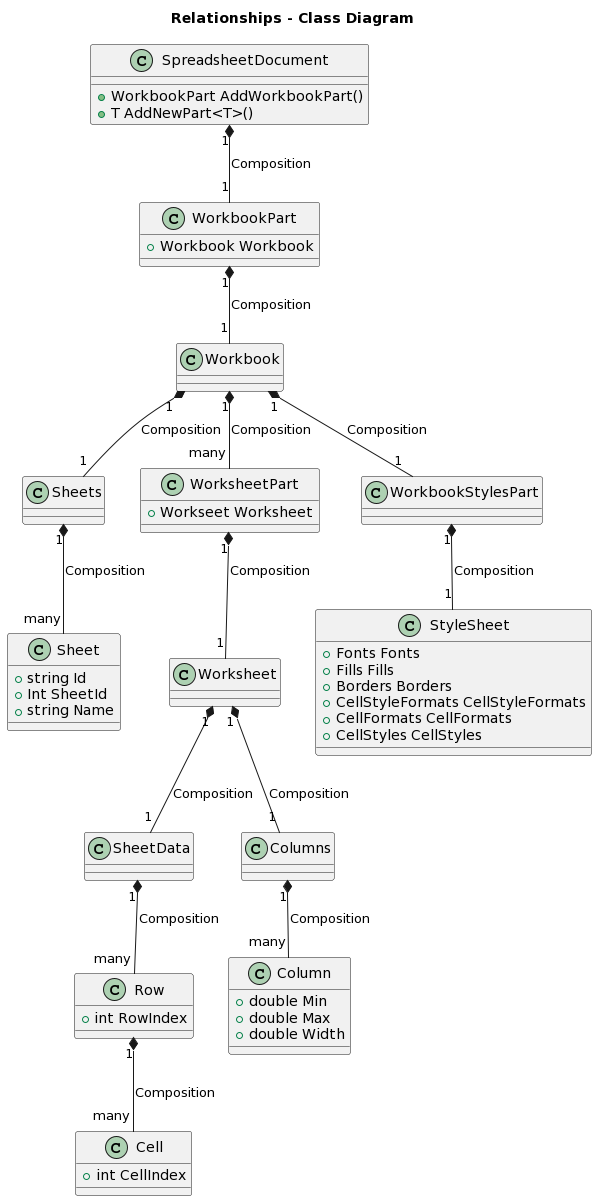
This post demonstrates how to export a .Net DataTable object to
Excel 2007 using the OpenXML SDK version 2.0.
With the release of the Office 2007 Suite, Microsoft changed the
core document format for the entire Office line to be based on the Office OpenXML standard. As of
December 2009 the technology preview of the OpenXML SDK 2.0 has
been released and is freely available to download. The OpenXML SDK
allows .Net developers to create and manipulate Office documents.
This is an especially large step forward for web developers, who
have traditionally had few options for exporting data into Excel
directly from their applications.
Getting Started with the OpenXML SDK 2.0
Be sure to review the System Requirements for the SDK.
The .Net Framework 3.5 SP1 is required.
First, you will need to download
the OpenXML SDK 2.0 package. If you are in a hurry and have no
intention of diving deep into the SDK, then just download the
smaller package (this is only the assembly you will need to make
this work).
For those of you interested in moving beyond the scope of this
article, I suggest also installing the tools package once you have
installed the assemblies (more on this later).
This tutorial (and sample code) does not assume any knowledge of
the DataTable. There can be any number of columns and rows supplied
and the export will still work correctly. I'm sure you have seen
many examples of exporting DataTable objects to CSV format that
take the same approach.
Create A Visual Studio Project
Once you have installed the SDK, create a new project in Visual
Studio; in this tutorial I am using an ASP .Net web application
project with C#, although this code will work with any project
type.
Once the project is created, right-click on the project and
select Add Reference in Visual Studio. Click on
the Browse tab and navigate to the OpenXML SDK
installation folder (the default installation path is
C:\Program Files\Open XML SDK\V2.0). Select the
assembly DocumentFormat.OpenXML.dll located in the
lib folder and click OK.

The OpenXML SDK 2.0 also requires a reference to the
WindowsBase assembly (WindowsBase.dll) in order to
use the System.IO.Packaging namespace. Repeat the same steps as
above and add a reference to WindowsBase from the
.Net tab.
Create the ExcelDocument Class
The ExcelDocument class only exists to generate a new empty
Excel spreadsheet document. The code to create a new document can
be extensive, but this is where the Tools installation of the SDK
comes in very handy:
Locate and run the OpenXmlSdkTool.exe
application in the Tools folder if you have
installed the tools package. This will launch the OpenXML
productivity tool:

Select Open File from the menu or the toolbar
and navigate to any Excel 2007 document you would like to use as a
template. Once you load the document, you will see the structure
outlined on the left side of the application. Now click
Reflect Code on the toolbar. The right frame
should now display a complete C# class for the document:

Paste this code into a new file in your project called
ExcelDocument.cs. The downloadable sample for this
article includes this file. The template I used is a default Excel
workbook.
You can also save time and gain more granular control over the
template by using a template file at runtime. To create a template
file, create a new Excel 2007 document. Save the document to your
project folder. Instead of executing the CreatePackage method
generated in ExcelDocument.cs, create a copy of the template file
at runtime:
File.Copy(templateFilePath, exportFilePath, true);
One advantage of this approach is that you can set custom
properties in your Excel template like corporate headers or cell.
Once you create the blank workbook, save it your project
folder.
If you do not have the ability to generate new Excel
documents, there is a blank workbook included in the sample code
with this post.
Create the ExcelExport Class
Now create a new class file called
ExcelExport.cs in your project. Add the following
references to the beginning of the file:
using System;
using System.Data;
using System.Linq;
using DocumentFormat.OpenXml.Packaging;
using DocumentFormat.OpenXml.Spreadsheet;
Next, add the following method to the file:
public void ExportDataTable(
DataTable table,
string exportFile)
{
//create the empty spreadsheet template and save the file //using the class generated by the Productivity tool ExcelDocument excelDocument = new ExcelDocument();
excelDocument.CreatePackage(exportFile);
//populate the data into the spreadsheet using (SpreadsheetDocument spreadsheet =
SpreadsheetDocument.Open(exportFile, true))
{
WorkbookPart workbook = spreadsheet.WorkbookPart;
//create a reference to Sheet1 WorksheetPart worksheet = workbook.WorksheetParts.Last();
SheetData data = worksheet.Worksheet.GetFirstChild<SheetData>();
//add column names to the first row Row header = new Row();
header.RowIndex = (UInt32)1;
foreach (DataColumn column in table.Columns)
{
Cell headerCell = createTextCell(
table.Columns.IndexOf(column) + 1,
1,
column.ColumnName);
header.AppendChild(headerCell);
}
data.AppendChild(header);
//loop through each data row DataRow contentRow;
for (int i = 0;i < table.Rows.Count; i++)
{
contentRow = table.Rows[i];
data.AppendChild(createContentRow(contentRow, i + 2));
}
}
}
The method above starts by using the ExcelDocument class created
earlier to create a new file, which is saved to the location
specified in the exportFile argument. Once the
file is created, there are two main loops that occur. The first
loops iterates through the DataTable object's columns and creates a
Cell object for each column name using the
createTextCell method:
private Cell createTextCell(
int columnIndex,
int rowIndex,
object cellValue)
{
Cell cell = new Cell();
cell.DataType = CellValues.InlineString;
cell.CellReference = getColumnName(columnIndex) + rowIndex;
InlineString inlineString = new InlineString();
Text t = new Text();
t.Text = cellValue.ToString();
inlineString.AppendChild(t);
cell.AppendChild(inlineString);
return cell;
}
Next, each row is appended to the worksheet using the
createContentRow method:
private Row createContentRow(
DataRow dataRow,
int rowIndex)
{
Row row = new Row {
RowIndex = (UInt32)rowIndex
};
for (int i = 0; i < dataRow.Table.Columns.Count; i++)
{
Cell dataCell = createTextCell(i + 1, rowIndex, dataRow[i]);
row.AppendChild(dataCell);
}
return row;
}
The createTextCell method uses one additional
supporting method to do the job of mapping the rows and columns to
the correct cell reference, the method
getColumnName:
private string getColumnName(int columnIndex)
{
int dividend = columnIndex;
string columnName = String.Empty;
int modifier;
while (dividend > 0)
{
modifier = (dividend - 1) % 26;
columnName =
Convert.ToChar(65 + modifier).ToString() + columnName;
dividend = (int)((dividend - modifier) / 26);
}
return columnName;
}
This method provides a quick an easy way to map a column index
number to an Excel column name (A-Z). The Cell object in the
OpenXML SDK requires a valid Excel cell reference (ex. A1, C2) to
be specified, so this method is combined with a row index reference
to create the cell reference. It is important to note that the
indexes here are not zero-based.
Finally, to implement the class above, use the following
code:
//create DataTable from sample data DataSet sampleDataSet = new DataSet();
sampleDataSet.ReadXml(context.Server.MapPath("~/sampleData.xml"));
DataTable productsTable = sampleDataSet.Tables[0];
string exportFile = context.Server.MapPath("~/excelExport.xslx");
ExcelExport export = new ExcelExport();
export.ExportDataTable(productsTable, exportFile);
The export file referenced is saved to disk automatically, so
once the ExportDataTable method completes the file is available to
be passed to the user.
You can download a
complete project example here if you would like to try the
sample code for yourself. The sample projects includes all of the
code shown above, a sample XML data file, and a generic handler
that runs the example code.
I hope you have enjoyed this post, please feel free to post
comments below if you have feedback or questions!